Estimated reading time: 8 minutes
Every Thursday, millions of gamers eagerly await the new free game in the Epic Games Store. Shortly afterwards, Prime Gaming drops new titles and GOG spontaneously gives away an indie hit. The problem: in your busy everyday life, it's easy to forget to log in everywhere and pick up the games manually. The result? You miss out on real gaming gems.
But what if a small tool could do all this annoying work for you? This is exactly where the Free Games Claimer from GitHub developer vogler into the game. In this guide, I'll show you what the tool can do, how it works under the hood and how you can set it up so that your game library grows all by itself.
For detailed instructions and explanations of all configuration options, I recommend watching the YouTube video linked below. This video goes into detail about each individual setting, providing you with comprehensive instructions on how to set everything up correctly. Any code from the video can be found in this article, so you can use it directly without having to type it out.
This blog post, including video, is part of a series in which we build and set up our own home server. We start with the basics, such as installing Ubuntu VM with Docker, and then move on to configuring our own domain, security measures, and, above all, lots of cool and useful self-hosted services. Whether it's media servers like Plex or Jellyfin or document management like Paperless-NGX, we'll work together to build the setup you want to see. We'll even tackle topics like single sign-on (SSO) together.
What is the Free Games Claimer? (Features)
The Free Games Claimer is an open source script that automatically logs into your accounts on various games platforms and adds free games („freebies“) to your library - i.e. „claims“ them.
The most important features at a glance:
- Dealing with captchas: The script offers clever solutions for overcoming login hurdles such as captchas or at least informing you when manual intervention (e.g. 2FA confirmation) is required.
- Multi-platform support: The tool natively supports the Epic Games Store, Amazon Prime Gaming and GOG. (Steam free promotions are often more complex, but can be partially covered by community extensions).
- Complete automation: Once set up, the script runs in the background (e.g. once a day via cronjob) and automatically checks whether new games are available.
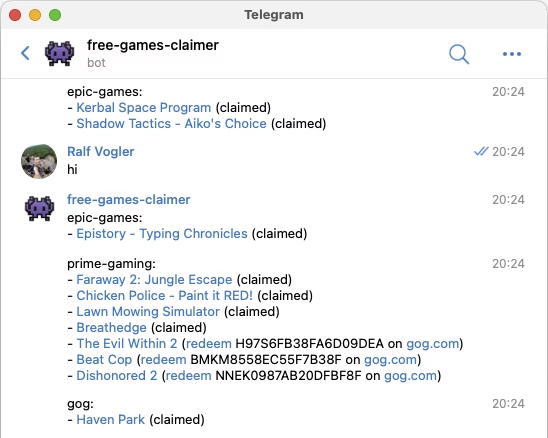
- Notifications: You can link the tool with services such as Telegram, Discord or Apprise. This means you receive a push message directly to your cell phone as soon as a new game has been successfully saved.
- Docker support: You don't have to clutter up your main system with dependencies. The Claimer can be conveniently operated as an isolated Docker container.
How does the whole thing actually work technically?
Perhaps you are wondering: „Is this magic or a hack?“ Neither. The Free Games Claimer uses a proven technique called Browser automation.
Under the hood, the tool works Playwright (a framework from Microsoft) in combination with Node.js. Playwright starts a so-called „headless browser“. This is a normal web browser (like Chrome or Firefox) that runs invisibly in the background without a graphical user interface.
The process looks like this:
- The script navigates the invisible browser instance to the login page of Epic Games, Prime, Steam or GOG.
- It automatically types in your (locally and securely stored) login data.
- It then calls up the subpages for the free games.
- The script searches for the buttons („Get“, „Claim“, „Free“) in the source code of the website and simulates a real mouse click on them.
- The purchase process (for 0.00 Euro) is completed.
- The session data (cookies/tokens) are saved so that you do not have to log in again the next time you use the service and the 2-factor authentication (2FA) does not fail every time.


How to set up the Free Games Claimer (The big update!)
Important in advance: The original GitHub repository from vogler has not been updated for almost 11 months. As platforms such as Epic and Prime Gaming are constantly changing their websites, some bugs and problems have crept into the original code.
But don't worry! The open source community has long since responded. For the installation we use a improved fork version (p-adamiec/free-games-claimer:enhanced), in which these errors have been corrected.
The most elegant and stable method to run the script on your own server (e.g. NAS, Raspberry Pi or rented vServer) is Docker Compose.
Step 1: The Docker Compose configuration
Instead of deleting the container after each run (the --rm command you should here not use!), we create the whole thing as a permanent service.
Create a new folder on your server, change into it and create a file called docker-compose.yml with the following content:
services:
  free-games-claimer:
    image: ghcr.io/p-adamiec/free-games-claimer:enhanced
    container_name: free-games-claimer
    restart: unless-stopped
    ports:
      - "6080:6080"
    environment:
      - TZ=Europe/Berlin
      # Enter your real access data here (examples below):
      - [email protected]
      - PASSWORD=
      - EG_EMAIL=
      - EG_PASSWORD=your_epic_password
      - EG_OTPKEY=your_epic_2fa_secret_key
      - EG_PARENTALPIN=
      - PG_EMAIL=
      - PG_PASSWORD=your_prime_password
      - PG_OTPKEY=your_prime_2fa_secret_key
      - PG_REDEEM=1
      - PG_CLAIMDLC=1
      - GOG_EMAIL=your_gog_username
      - GOG_PASSWORD=your_gog_password
      - GOG_NEWSLETTER=0
      - NOTIFY=discord://webhook_id/webhook_token
      - NOTIFY_TITLE=Free Games Claim
      - WIDTH=1920
      - HEIGHT=1080
      - STEAM_USERNAME=your_team_user
      - STEAM_PASSWORD=your_team_password
      - SHOW=1
    volumes:
      # Adapt the left path to your system, e.g. ./data:/fgc/data:rw
      - /mnt/cache/appdata/mediaserver/fgc:/fgc/data:rw
    networks:
      - sascha

networks:
  sascha:
    external: true
(Note: Adapt the volume paths and the network to your own server structure if you are not using an external network called „sascha“). -> of course you do not use this with the name
Notifications use an embedded notification in the background. Apprise-instance. There you will also find all information on possible notification services and their configuration.
Step 2: The 2FA trick (never type in codes again)
Using platforms without two-factor authentication (2FA) is grossly negligent these days. However, the Free Games Claimer can store your 2FA codes Generate fully automatically, if you give him the so-called „OTP Key“ (One-Time Password Secret).
These are the variables EG_OTPKEY (Epic) and PG_OTPKEY (Prime). This is how you get the key:
- For example, log in to Epic Games and briefly deactivate your current 2FA (or set it up again using an authenticator app).
- Epic will now show you a QR code to scan. Important: Click below on „Enter code manually“ or „Display secret key“.
- You will receive a long text code (e.g.
JBSWY3DPEHPK3PXP). - Enter exactly this code (even if this is on
====ends) in yourdocker-compose.ymlwithEG_OTPKEYin. Then scan the QR code as usual with your mobile app (e.g. Authy or Google Authenticator) to complete the setup with Epic.
From now on, the script calculates the 6-digit code itself with every login!
Exactly described for Epic Games and Prime Gaming it is in the README of the repository.
Step 3: The first start and (possibly) manual login
Start the container via your terminal: docker compose up -d
Even if you have stored all passwords and 2FA keys perfectly: You often have to intervene manually at the very first start. The platforms (especially Epic and Amazon) often sense danger when you log in from a completely new data center and throw captchas (image puzzles) or security queries at you.
- Open your browser directly after starting and call up the address of your server with port 6080 (e.g.
http://192.168.178.50:6080). - Thanks to the variable
SHOW=1you will now see the screen of the „invisible“ browser live. - If the bot gets stuck at a captcha or Amazon asks for an e-mail confirmation, simply take over the mouse in this window, solve the puzzle and log in manually once.
- The script now saves the successful session in your
volumes-folder (/fgc/data).
Step 4: The ultimate automation (scheduling)
The script is designed in such a way that it scans all stores, saves the games and then saves the Docker container. stops automatically. You do not have to (and should not) delete the container afterwards!
To automatically collect all free games EVERY week, simply set up a simple cron job (task scheduler) on your server that wakes up the stopped container once a week.
A cronjob for every Thursday at 18:30 (when Epic releases the new games) would look like this:
30 18 * * 4 docker start free-games-claimerSit back and relax! The container starts, checks all stores, fetches the games, sends you a success message via Discord or Telegram and then goes back to sleep. It couldn't be more efficient!
YouTube video implementation
Conclusion
The Free Games Claimer from vogler is an absolute flagship project of the open source community. Anyone with a little affinity for technology, Docker or command lines will love this tool.
It relieves you of the dull routine task of searching stores for freebies every week and patiently clicks through all checkouts. Setting it up may take 30 to 60 minutes of your time (especially because of the 2FA hurdle at the first login), but this investment pays off massively in the long run. You build up a huge digital game collection, completely free of charge and above all: completely stress-free.
Take a look at the project, support the developer on GitHub and let the bots work for you in the future while you concentrate on the essentials: gaming!
Useful links at a glance
- The tool on GitHub: vogler/free-games-claimer
- Docker Desktop (for easy installation): Download Docker
- Playwright documentation (for those interested in technology): Playwright.dev



0 Comments