Estimated reading time: 7 minutes
Does this sound familiar? The cordless screwdriver is somewhere in the basement, the warranty for the espresso machine is... somewhere. But when did it actually expire? And when was the last time you changed the oil in the lawnmower? This is exactly where HomeBox into play—a sleek, well-designed open-source tool that lets you digitally manage your entire home inventory—including QR codes, maintenance trackers, and more.
For detailed instructions and explanations of all configuration options, I recommend watching the YouTube video linked below. This video goes into detail about each individual setting, providing you with comprehensive instructions on how to set everything up correctly. Any code from the video can be found in this article, so you can use it directly without having to type it out.
This blog post, including video, is part of a series in which we build and set up our own home server. We start with the basics, such as installing Ubuntu VM with Docker, and then move on to configuring our own domain, security measures, and, above all, lots of cool and useful self-hosted services. Whether it's media servers like Plex or Jellyfin or document management like Paperless-NGX, we'll work together to build the setup you want to see. We'll even tackle topics like single sign-on (SSO) together.
🔧 What is HomeBox?
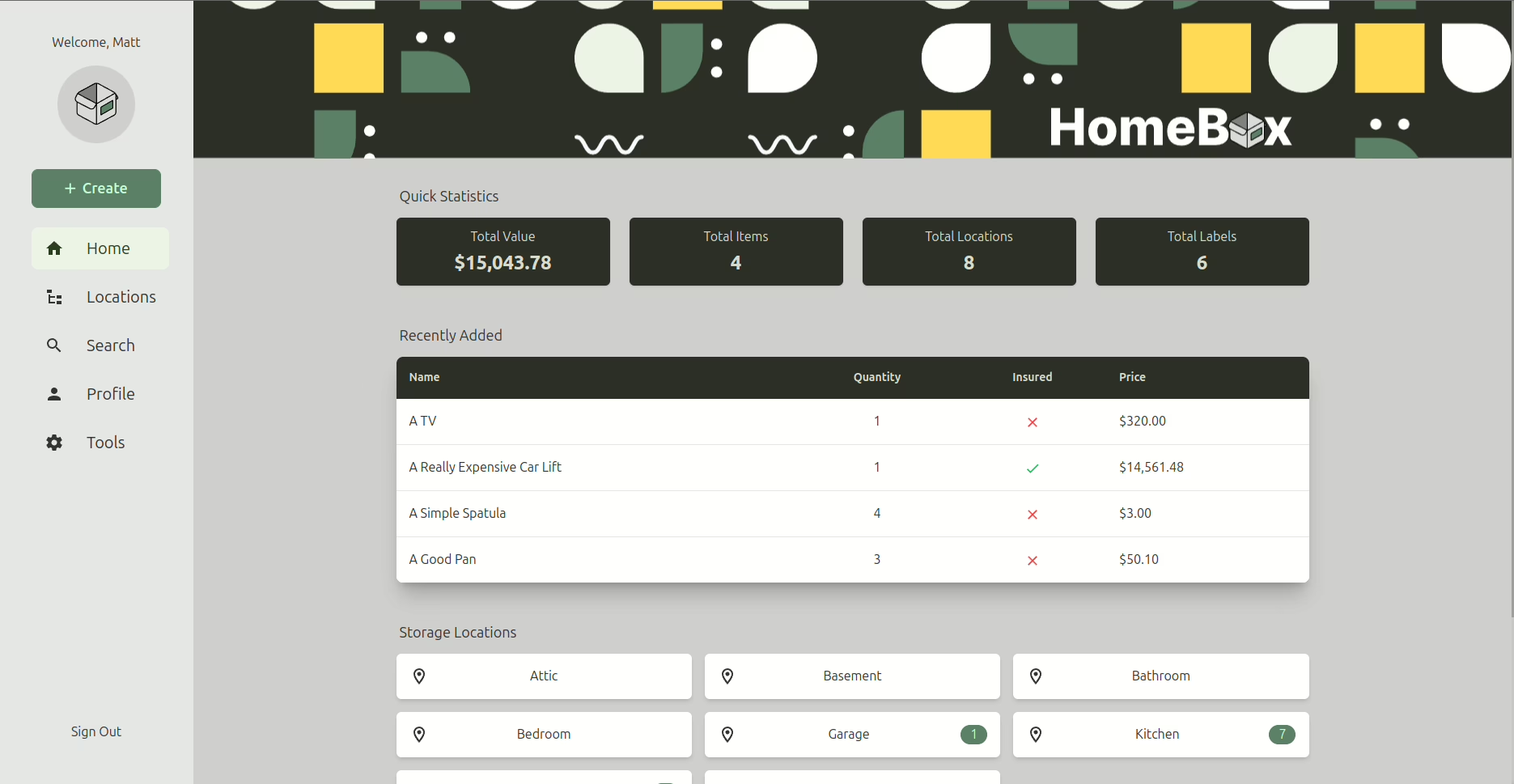
HomeBox is a self-hosted web app for managing household items, tools, appliances, electronics, and more. You can categorize each item, record photos, location, purchase date, serial number, and much more. QR codes provide quick access—ideal for basements, workshops, or households.
💡 Overview of the most important features
- 📦 Inventory management with categories, images, serial numbers, and storage locations
- 📆 Maintenance & Reminders – e.g., for filter changes or service intervals
- 📄 Warranty & purchase information deposit
- 📷 Generate QR codes and attach directly to the object
- 🔍 Quick search & filter
- 🌐 Multi-user capable
- 🔐 Locally hosted – full control over your data


🚀 Try it out & get started
There is a public demowhere you can test HomeBox right away—no registration required:
🔗 To the demo
If you want to install HomeBox yourself:
🔧 You can find the source code and installation instructions here:
🔗 GitHub: sysadminsmedia/homebox
A complete overview of features can be found here:
🌐 Official website
🧭 How to organize your inventory with HomeBox – step by step
The core idea behind HomeBox is that every item is a digitally recorded object with as many or as few details as you want. To ensure that your inventory is searchable and logically structured later on, it is worth following a few best practices.
Here are the most important tools and tips:
📁 1. Categories: The big picture
Categories are the first level of organization. You can structure them flexibly as needed, e.g.:
- household
- workshop
- garden
- electronics
- office
- camping
- kitchen
💡 TipKeep the categories broad and general. You can use tags to regulate the finer details.
📌 2. Tags: Flexible groupings
Tags are keywords that you can use to link items regardless of their category.
Examples:
batterywarrantyoutdoornewspare partused
You can combine tags as you wish and then filter them—for example, all devices with batteries or all items you bought secondhand.
🗂️ 3. Locations: Where is what?
Every object can be assigned to a place be assigned, e.g.:
- basement
- Garage / Shelf A
- Living room / Cupboard 3
- garden shed
- attic
This way, you not only keep whatbut also where something is always in view.
🔗 4. Link components and accessories
You can link objects to each other—for example, as a "component" or "accessory" of another item. For example:
- A camera has multiple batteries → These batteries are linked as accessories to the camera.
- A lawn mower has a replacement blade → This can also appear as a component.
In the object view, you can then see all related parts at a glance.
🛠️ 5. Document maintenance and inspections
HomeBox allows you to set up a separate profile for each object. maintenance entries Create – with date, note, and even reminder. Examples:
- Changing the oil in your lawn mower
- Replacing the battery in the smoke detector
- Maintenance of the water filter
- Software updates for electronics
If you wish, you can set reminders for when the next maintenance is due.
🧾 6. Enter purchase details & warranty information
For each object, you can specify:
- purchase date
- Price
- retailer
- serial number
- warranty period
- Uploaded invoices or receipts
This is particularly useful if you need to know later when you purchased something or whether it is still under warranty.
📷 7. QR codes for quick access
Each item is automatically assigned a QR code that you can print out and stick to the object. When you scan it with your smartphone (e.g., via the HomeBox web interface), you are taken directly to the object page—ideal for the basement, workshop, garage, or when you're on the go.
🧪 Practical example: The workshop with a system
You create a category called "Workshop" and add items such as cordless screwdrivers, drills, batteries, and chargers. Everything is assigned a location ("workbench on the left") and appropriate tags (battery, electrical, warranty) and QR codes.
You connect the charger as an accessory to the cordless screwdriver.
You create a maintenance task for the cordless screwdriver: "Batteries checked on 06/03/2025."
Done—and traceable at any time.
Installation via Docker
The easiest way is to install everything using Docker.
Requirements
- Docker & Docker Compose must be installed.
- The external network
sashamust be created in advance:docker network create sascha. - The data directory
/mnt/cache/appdata/wiki/homeboxmust exist or be able to be created automatically by the system. The latter is actually always the case. - Port 3100 must not already be in use by another service.
- Ideally, mail server access data should not be stored in plain text in the compose file—it is better to use
.envor manage Docker secrets.
Installation
services:
  homebox:
    image: ghcr.io/sysadminsmedia/homebox:latest
    container_name: homebox
    networks:
      - sascha
    ports:
      - 3100:7745
    environment:
      TZ: "Europe/Berlin"
      HBOX_LOG_LEVEL: "info"
      HBOX_LOG_FORMAT: "text"
      HBOX_WEB_MAX_UPLOAD_SIZE: "15"
      HBOX_MAILER_HOST: "mail.host.net"
      HBOX_MAILER_USERNAME: "[email protected]"
      HBOX_MAILER_PASSWORD: "mailPassword"
      HBOX_MAILER_FROM: "[email protected]"
      HBOX_OPTIONS_ALLOW_REGISTRATION: "true"
    volumes:
      - /mnt/cache/appdata/wiki/homebox:/data:rw
    restart: unless-stopped

networks:
  sascha:
    external: true
You can then simply start the services with the following command (the name must of course be adapted):
docker compose -f "docker-compose-homebox.yml" up -dIn this docker-compose.yml will the service home box as a container with the official image of ghcr.io/sysadminsmedia/homebox:latest operated. The container bears the fixed name homebox and uses the external Docker network sasha, which must already exist on the host system. This network ensures that Homebox can be connected to other services such as a reverse proxy.
The web service runs in the container on port 7745 by default and is made available on the host via port 3100 – the application can therefore be accessed in the browser at http://:3100 accessible.
In the environment variables section, first set the time zone to Europe/Berlin set. For logging, the level is set to info and the output is provided in text format. The maximum upload size in the web interface is limited to 15 MB. Email notifications (e.g., password reset) are sent via a configured SMTP server (mail.host.net), including username, password, and sender address. In addition, self-registration for new users is disabled, so that only administrators can create users.
The application data—including configuration, user management, and any uploaded files—is stored in the path /mnt/cache/appdata/wiki/homebox stored on the host. This volume is stored in the container under /data Integrated and permanently stored, even during updates or restarts.
The line restart: unless-stopped ensures that the container restarts automatically, for example after a server restart or error, unless it has been stopped manually.
Notes
- Passwords & sensitive data: Be careful,
.env-files or secrets when you version or share this Compose file. - Network
sashaThis network must be created externally in Docker (docker network create sascha) – if not available, remove thenetworkssection or change it tobridge.
YouTube video implementation
Conclusion
HomeBox is an ingenious tool for anyone who wants to bring more order to their home—whether you're a hobbyist, tech nerd, or just like to be organized. It's free, open source, and can be hosted entirely on your own server. Thanks to QR codes and maintenance trackers, your inventory is always up to date and easy to find.
🔗 Useful links at a glance
- 🧪 Try the demo: https://demo.homebox.software/
- 💻 Source code & setup: https://github.com/sysadminsmedia/homebox
- ℹ️ All features: https://homebox.software/en/


0 Comments